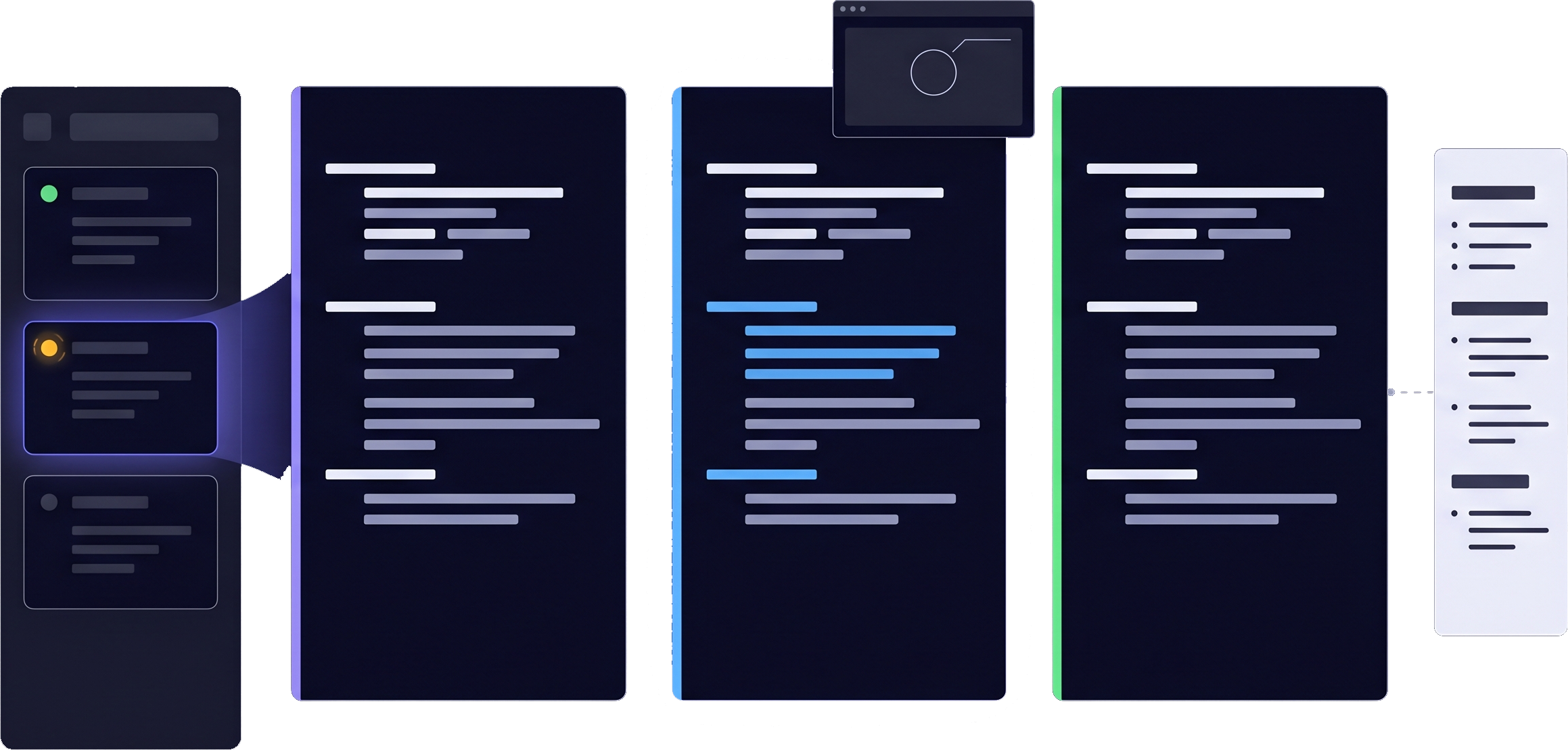
For developers juggling multiple AI coding CLIs, deploy scripts, and everyday terminals — without tab blindness. UnionTerminal tiles whatever you already launch (Claude Code, Copilot, Gemini CLI, OpenCode, PowerShell, WSL, Docker, test runners). It does not replace your agents, keys, or shell config. Download on the homepage.
// workflows
Follow the pain → fix path
Three situations multi-agent developers and Windows CLI users hit daily. Shortcuts and settings live in the user guide.
01
Multi-agent morning
One CLI blocks on yes/no while the others keep running
Without tiling
Claude Code on a refactor, Copilot in another tab, npm test --watch in a third. One stalls on approval — you only find it when you click the wrong session.
In UnionTerminal
Tile every shell in one grid. Sidebar status dots show which session needs you. Yellow = waiting Launch a waiting agent as a Satellite to float it beside your editor, then dock it back when done.
02
File path in output
src/App.tsx:42 appears — you need context before replying
Without tiling
Copy the path, alt-tab to your editor, read the file, alt-tab back, paste a citation. Repeat all day — whether the path came from an agent or plain grep.
In UnionTerminal
Click the path in that session's scrollback to preview in DocView beside the same terminal, or hover it for Preview, Open and Copy path buttons. Paste your citation back in one flow.
03
Visual context
Screenshot a glitch — send it to the CLI that asked
Without tiling
Four sessions open. You snip the bug but paste into whichever terminal was focused last — not the agent waiting for visual context.
In UnionTerminal
Clipboard rail (Ctrl+Shift+K), annotate, then drop into the session marked with a yellow dot. Hide finished agents without killing shells.
Ready to try it?
Free for Windows, Mac, Linux, and Omarchy. No account — tile agents beside PowerShell, WSL, Docker, and whatever you launch next.