> windows · macos · linux
One terminal. Every pane running at once.
Windows, Mac, Linux, Omarchy — free, local, no account.
Read the guide
Also for
·
Windows
·
macOS Apple Silicon Beta
M1, M2, M3, or M4 chip. Most Macs from late 2020 onward. Check → About This Mac to confirm.
·
macOS Intel Beta
Older Macs with an Intel processor. Typically 2020 or earlier.
·
Linux (Omarchy) Beta
Built and tested on Omarchy (Arch + Hyprland); x86_64 AppImage, other distros should work via AppImage.
Works with
Claude Code
Cursor
GitHub Copilot
Gemini CLI
any CLI tool
the grid
See every agent, all at once.
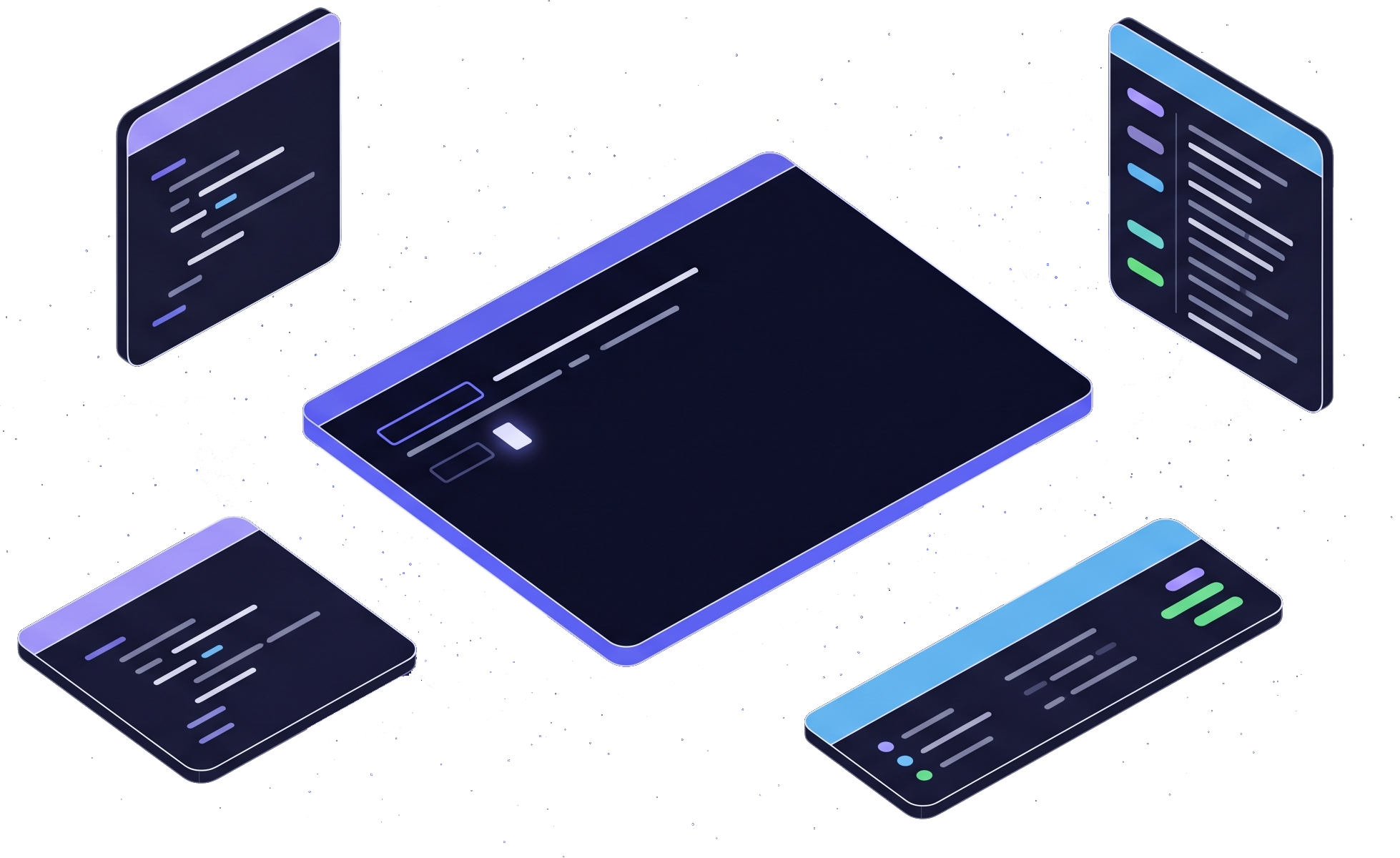
Four terminals running at once — build, API, tests, Claude — and you've lost track of which is stuck, which is done, which needs you. Tile them into one grid with a status dot on each.
Ctrl+Shift+4 grid
out of the grid, not out of sight
Know which one's waiting on you.
One agent stalls on a yes/no while three others keep running. Pop it into its own window, or shrink it to a Beacon chip in a small floating dock that pulses the second it needs you.
Ctrl+Alt+S
for claude code, specifically
Know before the session compacts.
You're deep in a Claude Code session and it compacts mid-thought. A steady percentage on the tab shows how much context you've used — no guessing. Switch models from the same bar.
Claude Code is a product of Anthropic. UnionTerminal isn't affiliated with or endorsed by Anthropic.
stay in the flow
Never alt-tab for a file again.
An agent cites src\App.tsx:42 — Shift-click the path to
preview it beside that terminal. Screenshot a bug and paste it
straight into the CLI that's waiting. Queue a command for 6pm
and forget it.
it's yours
Set it up once, keep it.
PowerShell, WSL, Git Bash, zsh — any shell, nothing to configure. Quit, crash, or update, and your layout, working folder and scrollback come back where you left them. No account, auto-updates on every OS — and on Omarchy, it follows your desktop theme live.
no upsell
We don't sell you AI.
No credits, no usage meter, no upsell. Just your tools, tiled the way you actually work.
No account
No AI credits
Runs locally
Auto-updates
Your commands, file paths and terminal output stay on your machine. Anonymous usage is on by default (one switch turns it off) and only counts installs and which features get used. It honors DO_NOT_TRACK.
None of that is free to build. If it’s useful to you, you can help pay for the next release. Become a sponsor →
Read the manifesto →Get started
Bring every pane into one window.
Free · No account · Claude Code Mode live today, Codex & others coming
Windows
macOS
Linux · Omarchy
Useful? Sponsoring helps pay for the next release.
Full requirements → /guide
What's new in 1.0.74
Full changelog →
- The Sponsor popover says what a sponsorship is.
- The Sponsor popover's top line is softer.